Primitive roots generation trails

Introduction

In this blog post (notebook) we show how to make neat chord plots of primitive roots generation sequences. Primitive roots a generators of cyclic multiplicative integer groups modulo . See the built-in Wolfram Language functions PrimitiveRoot and PrimitiveRootList. We follow the ideas presented in “Modular Arithmetic Visualizations” by Peter Karpov.

Remark: The basis representation section follows “Re-exploring the structure of Chinese character images”, [AAn1]; the movie exporting section follows “Rorschach mask animations projected over 3D surfaces”, [AAn2].

Remark: The motivation for finding and making nice primary root trails came from on working on Number theory neat examples discussed in [AAv1, AAv2].

Procedure outline

  1. Try to figure out neat examples to visualize primitive roots.
    1. Browse Wolfram Demonstrations.
    2. Search World Wide Web.
  2. Program a few versions of circle chords based visualization routines.
    1. Called chord trail plots below.
  3. Marvel at chord trail plots for larger moduli.
    1. Make multiple collections of them.
    2. Look into number of primitive roots distributions.
  4. Consider making animations of the collections.
    1. The animations should not be “chaotic” — they should have some inherent visual flow in them.
  5. Consider different ways of sorting chord trail plots.
    1. Using number theoretic arguments.
      1. Yeah, would be nice, but requires too much head scratching and LLM-ing.
    2. Convert plots to images and sort them.
      1. Some might say that that is a “brute force” application.
      2. Simple image sort does not work.
  6. Latent Semantic Analysis (LSA) application.
    1. After failing to sort the chord trail image collections by “simple” means, the idea applying LSA came to mind.
    2. LSA being, of course, a favorite technique that was applied to sorting images multiple times in the past, in different contexts, [AAn1, AAn3, AAn4, AAn5, AAv3].
    3. Also, having a nice (monadic) paclet for doing LSA, [AAp1], helps a lot.
  7. Make the animations and marvel at them.
  8. Export the chord trail plots animations for different moduli to movies and GIFs and upload them.
  9. Make a blog post (notebook).

Chord plot

It is fairly easy to program a chord plot using Graph:

(* Modulus and primivite root*)
n = 509; r = 128; 
(* Coordinates of the chords plot*)
coords = AssociationThread[Range[n], Table[{Cos[2 Pi k/(n - 1) + Pi/2], Sin[2 Pi k/(n - 1) + Pi/2]}, {k, 0, n - 1}]]; 
(* Graph edges *) 
edges = UndirectedEdge @@@ Partition[PowerMod[r, #, n] & /@ Range[n], 2, 1]; 
(*Graph*) 
Graph[edges, VertexCoordinates -> coords, VertexSize -> 0, EdgeStyle -> AbsoluteThickness[0.6]]

0ja9nttj7gvy9

We make the function ChordTrailsGraph (see Section “Setup” below) encapsulating the code above. Here is an example:

ChordTrailsGraph[509, 47, EdgeStyle -> {AbsoluteThickness[0.8`]}, 
 VertexSize -> 0, VertexStyle -> EdgeForm[None], 
 EdgeStyle -> RGBColor[0.6093762755665056`, 0.7055193578067459`, 0.8512829338493225`]]

0w93mw9n87rvn

Instead of using Graph we can just a Graphics plot — again see the definition in “Setup”. Here is an example:

ChordTrails[509, 75, "Color" -> Automatic]

05fw4gbxvzil3

Note that the modular inverse is going to produce the same chord trails plot:

Row[{
   ChordTrails[257, 3, ImageSize -> 300], 
   ChordTrails[257, ModularInverse[3, 257], ImageSize -> 300] 
  }]

0ir0c5f83rko2

Making collections of plots

Here w pick a large enough modulus, we find the primitive roots, and keep only primitive roots that will produce unique chord trail plots:

n = 509;
rs = PrimitiveRootList[n];
Length[rs]
urs = Select[rs, # <= ModularInverse[#, n] &];
urs // Length

(*252*)

(*126*)

Here is the collection using Graph:

AbsoluteTiming[
  gs1 = Association@
      Map[# ->
          ChordTrailsGraph[n, #, EdgeStyle -> {AbsoluteThickness[0.8]},
            VertexSize -> 0, VertexStyle -> EdgeForm[None],
            EdgeStyle -> RGBColor[0.6093762755665056, 0.7055193578067459, 0.8512829338493225],
            ImageSize -> 300] &, urs];
]

(*{0.771692, Null}*)

Here is a sample of plots from the collection:

KeyTake[gs1, {2, 48, 69}]

1aa33rtlvkbnh

Here is the collection using Graphics:

AbsoluteTiming[
  gs2 = Association@Map[# -> ChordTrails[n, #, ImageSize -> 300] &, urs]; 
 ]

(*{1.13483, Null}*)

Here is a sample of plots from the collection (same indexes as above):

KeyTake[gs2, {2, 48, 69}]

1qeiu9fz57as7

Remark: It looks like that using Graph is faster and produces (admittedly, with tweaking options) better looking plots.

Since we want to make an animation of chord-trail plots, we convert the collection of plots into a collection of images:

AbsoluteTiming[
  imgs = Map[Rasterize[#, "Image", RasterSize -> 500, ImageSize -> 600] &, gs2]; 
 ]

(*{15.5664, Null}*)


Generalization

The function ChordTrails can be generalized to take a (pre-computed) chords argument. Here is an example of chords plot that connects integers that are modular inverses of each other:

m = 4000;
chords = Map[If[NumericQ@Quiet@ModularInverse[#, m], {#, ModularInverse[#, m]},Nothing] &, Range[m]];
ChordTrails[m, chords, PlotStyle -> AbsoluteThickness[0.01], ImageSize -> 400]

03q03q9hobjx5

LSAMon application

In order to sort the plots we find dimension reduction basis representation of the corresponding images and sort using that representation. For more details see “Re-exploring the structure of Chinese character images”, [AAn1].

Clear[ImagePreProcessing, ImageToVector];
ImagePreProcessing[img_Image] := ColorNegate@Binarize[img, 0.9];
ImageToVector[img_Image] := Flatten[ImageData[ImagePreProcessing[img]]];
ImageToVector[img_Image, imgSize_] := Flatten[ImageData[ColorConvert[ImageResize[img, imgSize], "Grayscale"]]];
ImageToVector[___] := $Failed;

aCImages = imgs;

AbsoluteTiming[aCImageVecs = ParallelMap[ImageToVector, aCImages];]

(*{0.184429, Null}*)

SeedRandom[32];
MatrixPlot[Partition[#, ImageDimensions[aCImages[[1]]][[2]]]] & /@ RandomSample[aCImageVecs, 3]

1tavxw8a8s8c7
mat = ToSSparseMatrix[SparseArray[Values@aCImageVecs], "RowNames" -> Map[ToString, Keys[aCImageVecs]], "ColumnNames" -> Automatic]

1wjcl3g3a3wd5
SeedRandom[777];
AbsoluteTiming[
  lsaAllObj = 
    LSAMonUnit[]⟹
     LSAMonSetDocumentTermMatrix[mat]⟹
     LSAMonApplyTermWeightFunctions["None", "None", "Cosine"]⟹
     LSAMonExtractTopics["NumberOfTopics" -> 120, Method -> "SVD", "MaxSteps" -> 15, "MinNumberOfDocumentsPerTerm" -> 0]⟹
     LSAMonNormalizeMatrixProduct[Normalized -> Right]; 
 ]

(*{7.56445, Null}*)

In case you want to see the basis (we show just a sample):

lsaAllObj⟹
   LSAMonEcho[Style["Sample of the obtained basis:", Bold, Purple]]⟹
   LSAMonEchoFunctionContext[ImageAdjust[Image[Partition[#, ImageDimensions[aCImages[[1]]][[1]]], ImageSize -> Tiny]] & /@ SparseArray[#H[[{2, 11, 60}, All]]] &];

0vmbr8ahsrf68
1s2uag61bl0wu
W2 = lsaAllObj⟹LSAMonNormalizeMatrixProduct[Normalized -> Right]⟹LSAMonTakeW;
Dimensions[W2]

(*{126, 120}*)

H = lsaAllObj⟹LSAMonNormalizeMatrixProduct[Normalized -> Right]⟹LSAMonTakeH;
Dimensions[H]

(*{120, 250000}*)

AbsoluteTiming[lsClusters = FindClusters[Normal[SparseArray[W2]] -> RowNames[W2], 40, Method -> {"KMeans"}];]
Length@lsClusters
ResourceFunction["RecordsSummary"][Length /@ lsClusters]

(*{0.2576, Null}*)

(*40*)

0i5ilivzw0nl5
matPixels = WeightTermsOfSSparseMatrix[lsaAllObj⟹LSAMonTakeWeightedDocumentTermMatrix, "IDF", "None", "Cosine"];
matTopics = WeightTermsOfSSparseMatrix[lsaAllObj⟹LSAMonNormalizeMatrixProduct[Normalized -> Left]⟹LSAMonTakeW, "None", "None", "Cosine"];

SeedRandom[33];
ind = RandomChoice[Keys[aCImages]];
imgTest = ImagePreProcessing@aCImages[ind];
matImageTest = ToSSparseMatrix[SparseArray@List@ImageToVector[imgTest, ImageDimensions[aCImages[[1]]]], "RowNames" -> Automatic, "ColumnNames" -> Automatic];
(*imgTest*)

H = lsaAllObj⟹LSAMonNormalizeMatrixProduct[Normalized -> Right]⟹LSAMonTakeH;
lsBasis = ImageAdjust[Image[Partition[#, ImageDimensions[aCImages[[1]]][[1]]]]] & /@ SparseArray[H];

matReprsentation = lsaAllObj⟹LSAMonRepresentByTopics[matImageTest]⟹LSAMonTakeValue;
lsCoeff = Normal@SparseArray[matReprsentation[[1, All]]];
ListPlot[MapIndexed[Tooltip[#1, lsBasis[[#2[[1]]]]] &, lsCoeff], Filling -> Axis, PlotRange -> All]

vecReprsentation = lsCoeff . SparseArray[H];
reprImg = Image[Unitize@Clip[#, {0.45, 1}, {0, 1}] &@Rescale[Partition[vecReprsentation, ImageDimensions[aCImages[[1]]][[1]]]]];
GridTableForm[Binarize@Show[#, ImageSize -> 350] & /@ {imgTest, reprImg}, TableHeadings -> {"Test", "Approximated"}]

19gvpmjp7dx8d
W = lsaAllObj⟹LSAMonNormalizeMatrixProduct[Normalized -> Left]⟹LSAMonTakeW;
Dimensions[W]

(*{126, 120}*)

aWVecs = KeyMap[ToExpression, AssociationThread[RowNames[W], Normal[SparseArray[W]]]];

ListPlot[Values@aWVecs[[1 ;; 3]], Filling -> Axis, PlotRange -> All]

0ajyn6ixlitgd
aWVecs2 = Sort[aWVecs];

aWVecs3 = aWVecs[[Ordering[Values@aWVecs]]];

Animate sorted

Here we make the animation of sorted chord trail plots:

ListAnimate[Join[Values[KeyTake[gs, Keys[aWVecs3]]], Reverse@Values[KeyTake[gs, Keys[aWVecs3]]]], DefaultDuration -> 24]

Playing the link to an uploaded movie:

Video["https://www.wolframcloud.com/obj/25b58db2-16f0-4148-9498-d73062387ebb"]


Export

Remark: The code below follows “Rorschach mask animations projected over 3D surfaces”.

Remark: The animations are exported in the subdirectory “AnimatedGIFs”.

Export to MP4 (white background)

lsExportImgs = Join[Values[KeyTake[imgs, Keys[aWVecs2]]], Reverse@Values[KeyTake[imgs, Keys[aWVecs2]]]];

AbsoluteTiming[
  Export[FileNameJoin[{NotebookDirectory[], "AnimatedGIFs", "PrimitiveRoots-" <> ToString[n] <> ".mp4"}], lsExportImgs, "MP4","DisplayDurations" -> 0.05]; 
 ]

Export to GIF (black background)

AbsoluteTiming[
  lsExportImgs2 = ColorNegate[ImageEffect[#, "Decolorization"]] & /@ Values[KeyTake[imgs, Keys[aWVecs2]]]; 
 ]

lsExportImgs2 = Join[lsExportImgs2, Reverse@lsExportImgs2];
lsExportImgs2 // Length

lsExportImgs2[[12]]

AbsoluteTiming[
  Export[FileNameJoin[{NotebookDirectory[], "AnimatedGIFs", "PrimitiveRoots-" <> ToString[n] <> ".gif"}], lsExportImgs2, "GIF", "AnimationRepetitions" -> Infinity, "DisplayDurations" -> 0.05]; 
 ]

Optionally, open the animations directory:

(*FileNameJoin[{NotebookDirectory[],"AnimatedGIFs"}]//SystemOpen*)


Setup

Load paclets

Needs["AntonAntonov`SSparseMatrix`"];
Needs["AntonAntonov`MonadicLatentSemanticAnalysis`"];
Needs["AntonAntonov`MonadicSparseMatrixRecommender`"];
Needs["AntonAntonov`OutlierIdentifiers`"];
Needs["AntonAntonov`DataReshapers`"];

Chord plots definitions

Clear[ChordTrailsGraph];
Options[ChordTrailsGraph] = Options[Graph];
ChordTrailsGraph[n_Integer, r_Integer, opts : OptionsPattern[]] := 
   Block[{coords, edges, g}, 
    coords = AssociationThread[Range[n], Table[{Cos[2 Pi k/(n - 1) + Pi/2], Sin[2 Pi k/(n - 1) + Pi/2]}, {k, 0, n - 1}]]; 
    edges = UndirectedEdge @@@ Partition[PowerMod[r, #, n] & /@ Range[n], 2, 1]; 
    g = Graph[edges, opts, VertexCoordinates -> coords]; 
    g 
   ];

Clear[ChordTrails];
Options[ChordTrails] = Join[{"Color" -> RGBColor[0.4659039108257499, 0.5977704831063181, 0.7964303267504351], PlotStyle -> {}}, Options[Graphics]];
ChordTrails[n_Integer, r_Integer, opts : OptionsPattern[]] :=
  Block[{chords},
   chords = Partition[PowerMod[r, #, n] & /@ Range[n], 2, 1];
   ChordTrails[n, chords, opts]
  ];
ChordTrails[n_Integer, chordsArg : {{_?IntegerQ, _?IntegerQ} ..}, opts : OptionsPattern[]] :=
  Block[{chords = chordsArg, color, plotStyle, coords},
   
   color = OptionValue[ChordTrails, "Color"];
   If[TrueQ[color === Automatic], 
    color = RGBColor[
     0.4659039108257499, 0.5977704831063181, 0.7964303267504351]];
   plotStyle = OptionValue[ChordTrails, PlotStyle];
   If[TrueQ[plotStyle === Automatic], plotStyle = {}];
   plotStyle = Flatten[{plotStyle}];
   
   coords = 
    AssociationThread[Range[n], 
     Table[{Cos[2 Pi k/(n - 1) + Pi/2], Sin[2 Pi k/(n - 1) + Pi/2]}, {k, 0, n - 1}]];
   chords = chords /. {i_Integer :> coords[[i]]};
   Which[
    ColorQ[color],
    Graphics[{Sequence @@ plotStyle, color, Line[chords]}, 
     FilterRules[{opts}, Options[Graphics]]],
    TrueQ[Head[color] === ColorDataFunction],
    Graphics[{Sequence @@ plotStyle, 
      MapIndexed[{color[#2[[1]]/Length[chords]], Line[#1]} &, chords]},
      FilterRules[{opts}, Options[Graphics]]],
    True,
    Echo["Unknown color spec.", "GroupClassChords:"];
    $Failed
    ]
   ];

References

Articles, posts

[PK1] Peter Karpov, “Modular Arithmetic Visualizations”, (2016), Inversed.ru.

Notebooks

[AAn1] Anton Antonov, “Re-exploring the structure of Chinese character images”, (2022), Wolfram Community.

[AAn2] Anton Antonov,  “Rorschach mask animations projected over 3D surfaces”, (2022), Wolfram Community.

[AAn3] Anton Antonov, “Handwritten Arabic characters classifiers comparison”, (2022), Wolfram Community.

[AAn4] Anton Antonov, “LSA methods comparison over random mandalas deconstruction — WL”, (2022), Wolfram Community.

[AAn5] Anton Antonov, “LSA methods comparison over random mandalas deconstruction — Python”, (2022), Wolfram Community.

Paclets

[AAp1] Anton Antonov, “MonadicLatentSemanticAnalysis”, (2023), Wolfram Language Paclet Repository.

Videos

[AAv1] Anton Antonov, “Number theory neat examples in Raku (Set 1)”, (2025), YouTube/@AAA4prediction.

[AAv2] Anton Antonov, “Number theory neat examples in Raku (Set 2)”, (2025), YouTube/@AAA4prediction.

[AAv3] Anton Antonov, “Random Mandalas Deconstruction in R, Python, and Mathematica (Greater Boston useR Meetup, Feb 2022)”, (2022), YouTube/@AAA4prediction.

Extracting Russian casualties in Ukraine data from Mediazona publications

Introduction

In this blog post (corresponding to this notebook) we discuss data extraction techniques from the Web site Mediazona that tracks the Russian casualties in Ukraine. See [MZ1].

Since we did not find a public source code (or data) repository (like GitHub) of the data, we extract the data directly from the web site [MZ1]. We can use both (i) image processing and (ii) web browser automation. But since we consider the latter to be both time consuming and unreliable to reproduce, in this notebook we consider only image processing (combined with AI vision.)

We did not “harvest” all types of data from Mediazona, only the casualties per week and day for all troops. (Which we see as most important.)

This notebook is intentionally kept to be only “technical know-how”, without further data analysis, or correlation confirmations with other publications, or model applications, etc. We plan to do analysis and modeling in other notebooks/articles. (Using data from Mediazona and other sources.)

Remark: At the time of programming the extractions of this notebook, (2023-11-29), Midiazona, [MZ1], says that the Russian casualties it presents are corroborated by publicly available data as of 17 November, 2023.

Remark: Mediazona is Anti Putinist, [Wk1], and (judging from its publications) it is pro-Ukraine and pro-West.

Similar other data sources

Here is a couple of other data sources with similar intent or mission:

Remark: Those are pro-Russian sites.

TL;DR

Here is the data that is extracted below using image processing and OpenAI’s LLM vision capabilities, [AAn1, OAIb1]:

Here is the corresponding JSON file.

Here is a bar chart with tooltips for the weekly casualties that corresponds to the weekly casualties bar chart in [MZ1] (for all troops):

bcCol = RGBColor @@ ({143, 53, 33}/255);
xTicks = MapIndexed[{#2[[1]], DateString[First@#WeekSpan, {"MonthNameShort", " '", "YearShort"}]} &, mediaZonaData];
BarChart[Map[Tooltip[#["total_casualties"], Labeled[Grid[Map[{#[[1]], " : ", #[[2]]} &, List @@@ Normal[#["count_per_day"]]]], Column[{Style[#["week_span"], Blue], Row[{"total casualties:", Spacer[3], Style[#["total_casualties"], Red]}]}], Top]] &, mediaZonaData 
  ], 
  PlotTheme -> "Detailed", 
  FrameLabel -> Map[Style[#, FontSize -> 14] &, {"Week", "Number of killed"}], FrameTicks -> {{Automatic, Automatic}, {{#[[1]], Rotate[#[[2]], \[Pi]/6]} & /@ xTicks[[1 ;; -1 ;; 4]], Automatic}}, PlotLabel -> Style["Confirmed Russian casualties in Ukraine per week", Bold, FontSize -> 18], 
  ChartStyle -> Block[{tcs = Map[#["total_casualties"] &, mediaZonaData]}, Blend[{White, bcCol}, #] & /@ (tcs/Max[tcs])], 
  ImageSize -> 1000, 
  AspectRatio -> 1/1.8 
 ]

Document structure

The rest of document has the following sections:

  • Images with data
  • Weekly casualties extraction
  • Daily data extraction from daily bar chart
  • Daily data extraction from weekly bar chart tooltips
  • Additional comments and remarks

The second and fourth sections have subsections that outline the corresponding procedures.

Images with data

At first we got two images from [MZ1]: one for casualties per week and one for casualties per day. (For all troops.)

Then in order to extract more faithful daily casualties data we took ≈90 screenshots of the weekly casualties bar chart at [MZ1], each screenshot with a tooltip shown for a different week.

Casualties per week

Casualties per day

Screenshots of weekly bar chart with tooltips

In order to get more faithful data readings of the daily casualties multiple (≈90) screenshots were taken of the weekly casualties bar chart, each of the screenshots having a tooltip table of one (unique) bar. It took ≈15 minutes to take those screenshots. They can be obtained from this Google Drive link.

Here is how one of them looks like:

Number of days and number weeks

Here is the number of weeks we expect to see in the “Casualties per week” plot:

nWeeks = Round@DateDifference[DateObject[{2022, 02, 24}], DateObject[{2023, 11, 17}], "Week"]

(* 90 wk *)

Here is the number of days we expect to see in the “Casualties per day” plot:

nDays = Round@DateDifference[DateObject[{2022, 02, 24}], DateObject[{2023, 11, 03}]]

(*617 days*)

Weekly data extraction

Procedure

Here is the outline of the procedure:

  • Crop the image, so only the bar chart elements are on it
  • Binarize the image, and negated
    • So all visible bars are white on black background
  • Extracting morphological components
  • Find the bar sizes from the extracted components
  • Rescale to match real data
  • Check the absolute and relative errors between derived total number of casualties and the published one

Crop image

Here we take “the bars only” part of the image:

imgCasualtiesPerWeek2 = ImageTake[imgCasualtiesPerWeek, {120, -140}, {100, -60}]

Binarization and color negation

Binarize the cropped the image:

img = Binarize[imgCasualtiesPerWeek2, 0.85]

Here we binarize and color negate the image:

img2 = ColorNegate@Binarize[img]

Extracting morphological components

Here is the result of an application of morphological components finder:

MorphologicalComponents[img2] // Colorize

Find the bounding boxes of the morphological components:

aBoxes = SortBy[Association[ComponentMeasurements[img2, "BoundingBox"]], #[[1, 1]] &];
aBoxes = AssociationThread[Range@Length@aBoxes, Values@aBoxes];
aBoxes[[1 ;; 4]]

(*<|1 -> {{14., 6.}, {24., 473.}}, 2 -> {{25., 6.}, {35., 533.}}, 3 -> {{37., 6.}, {47., 402.}}, 4 -> {{48., 6.}, {58., 235.}}|>*)

Here we see are all component bounding boxes having the same minimum y-coordinate:

Tally@Values[aBoxes][[All, 1, 2]]

(*{{6., 66}, {7., 22}}*)

Find the heights of the rectangles and make a corresponding bar plot:

(*aHeights=Map[#\[LeftDoubleBracket]2,2\[RightDoubleBracket]-#\[LeftDoubleBracket]1,2\[RightDoubleBracket]&,aBoxes];*)
  aHeights = Map[#[[2, 2]] - Min[Values[aBoxes][[All, 1, 2]]] &, aBoxes]; 
   BarChart[aHeights, PlotTheme -> "Detailed", ImageSize -> 900]

Rescaling to match real data

The extracted data has to be rescaled to match the reported data. (We can see we have to “calibrate” the extracted data over a few points of the real data.)

Here we remake the plot above to include characteristic points we can use the calibration:

pos = Position[aHeights, Max[aHeights]][[1, 1, 1]];
pos2 = 23;
aHeights2 = aHeights;
Do[aHeights2[p] = Callout[aHeights2[[p]]], {p, {1, pos2, pos}}];
BarChart[aHeights2, GridLines -> {pos, None}, PlotTheme -> "Detailed",ImageSize -> 900]

Here are a few characteristic points of the real data

aRealHeights = <|1 -> 544, 7 -> 167, 23 -> 96, pos2 -> 414, pos -> 687|>

(*<|1 -> 544, 7 -> 167, 23 -> 414, 50 -> 687|>*)

Rescaling formula:

frm = Rescale[x, {aHeights[pos2], aHeights[pos]}, {aRealHeights[pos2], aRealHeights[pos]}]

(*369.219 + 0.539526 x*)
frm = Rescale[x, {0, aHeights[pos]}, {0, aRealHeights[pos]}]

(*0. + 1.16638 x*)

Rescaling function:

f = With[{fb = frm /. x -> Slot[1]}, fb &]

(*0. + 1.16638 #1 &*)

Apply the rescaling function:

aHeightsRescaled = Ceiling@*f /@ aHeights

(*<|1 -> 545, 2 -> 615, 3 -> 462, 4 -> 268, 5 -> 370, 6 -> 205, 7 -> 168, 8 -> 213, 9 -> 321, 10 -> 247, 11 -> 299, 12 -> 200, 13 -> 335, 14 -> 261, 15 -> 202, 16 -> 174, 17 -> 202, 18 -> 233, 19 -> 234, 20 -> 215, 21 -> 201, 22 -> 139, 23 -> 97, 24 -> 152, 25 -> 187, 26 -> 150, 27 -> 222, 28 -> 333, 29 -> 263, 30 -> 256, 31 -> 385, 32 -> 440, 33 -> 356, 34 -> 352, 35 -> 404, 36 -> 415, 37 -> 408, 38 -> 378, 39 -> 331, 40 -> 311, 41 -> 530, 42 -> 418, 43 -> 399, 44 -> 404, 45 -> 616, 46 -> 549, 47 -> 614, 48 -> 580, 49 -> 647, 50 -> 687, 51 -> 504, 52 -> 469, 53 -> 486, 54 -> 516, 55 -> 500, 56 -> 511, 57 -> 427, 58 -> 336, 59 -> 311, 60 -> 250, 61 -> 289, 62 -> 259, 63 -> 313, 64 -> 320, 65 -> 238, 66 -> 195, 67 -> 284, 68 -> 269, 69 -> 282, 70 -> 234, 71 -> 235, 72 -> 214, 73 -> 196, 74 -> 242, 75 -> 179, 76 -> 156, 77 -> 125, 78 -> 165, 79 -> 173, 80 -> 171, 81 -> 163, 82 -> 159, 83 -> 122, 84 -> 114, 85 -> 163, 86 -> 207, 87 -> 144, 88 -> 47|>*)

Here are some easy to check points (post-rescaling):

KeyTake[aHeightsRescaled, {1, 2, 7, Length[aHeightsRescaled]}]

(*<|1 -> 545, 2 -> 615, 7 -> 168, 88 -> 47|>*)

Verification check

Here is the image-extraction, estimated total:

imgTotal = aHeightsRescaled // Total

(*26961*)

The estimated total is close to the reported $26882$, with $79$absolute error and$\approx 3$‰ relative error:

reportTotal = 26882;
errAbs = N@Abs[reportTotal - imgTotal]
errRatio = N@Abs[reportTotal - imgTotal]/reportTotal

(*79.*)

(*0.00293877*)

Remark: The reported total number of casualties can be seen in the original weekly casualties screenshot above.

Daily data extraction from daily bar chart

Daily casualties extraction is not that easy with technique applied to the weekly casualties plot. One of the reasons is that the daily casualties plot is also a user input interface(on that web page).

Since we want to get daily data for calibration of (generalized) Lanchester law models we can simply extrapolate the weekly data with daily averages. We can also over-impose in some way the two images (or plots) in order to convince ourselves that we have a faithful enough interpolation.

lsDailyHeightsRescaled = Flatten@Map[Table[#, 7]/7 &, Values[aHeightsRescaled]];
BarChart[lsDailyHeightsRescaled, ImageSize -> 900, AspectRatio -> 1/8,PlotTheme -> "Web"]

Nevertheless, more faithful daily data can be obtained by image- and LLM processing the tooltips of the weekly casualties chart. (See the next section.)


Daily data extraction from weekly bar chart tooltips

Procedure

Here is the procedure outline:

  • Take multiple screenshots of the weekly casualties bar chart
    • A screenshot for each week with the corresponding tooltip shown
    • Make sure all screenshots have the same size (or nearly the same size)
      • E.g. take “window screenshots”
    • ≈90 screenshots can be taken within 15 minutes
  • Crop the screenshots appropriately
  • In order to get the tooltip tables only for each screenshot:
  • Verify good tooltips table image is obtained for each screenshot (week)
  • Do Optical Character Recognition (OCR) over the images
    • One option is to send them to an Artificial Intelligence (AI) vision service
    • Another option is to use WL’s TextRecognize
  • Parse or otherwise process the obtained OCR (or AI vision) results
  • Verify that each week is reflected in the data
    • It might happen that screenshots are not “a full set“
  • Make time series with the obtained data and compare or verify with published data and plots
    • Check are the casualties totals the same, do the plots look similar, etc.
  • Make an informative bar chart with tooltips
    • That resembles the one the screenshots were taken from
    • See the subsection “TL;DR” in the introduction

Remark: When using AI vision the prompt engineering might take a few iterations, but not that many.

Remark: The few experiments with the WL built-in text recognition produced worse results than using AI vision. Hence, they were not extended further.

Screenshots ingestion

Get screenshot file names

dirNameImport = FileNameJoin[{NotebookDirectory[], "Screenshots-Mediazona-weekly-casualties-histogram"}];
lsFileNames = FileNames["*.png", dirNameImport];
Length[lsFileNames]

(*94*)

Import images

AbsoluteTiming[
  lsImgs = Import /@ lsFileNames; 
 ]

(*{2.50844, Null}*)

Here is one of the imported images:

ImageResize[lsImgs[[14]], 900]

Definition

Here define a function that is used to batch transform the screenshots:

Clear[MakeEasyToRead];
Options[MakeEasyToRead] = {"BoundingBox" -> Automatic, "BinarizingLimits" -> Automatic};
MakeEasyToRead[img_?ImageQ, opts : OptionsPattern[]] := 
   Block[{boundingBox, mbLimits, img2, img3}, 
    
    boundingBox = OptionValue[MakeEasyToRead, "BoundingBox"]; 
    If[TrueQ[boundingBox === Automatic], boundingBox = {{380, -180}, {280, -280}}]; 
    
    mbLimits = OptionValue[MakeEasyToRead, "BinarizingLimits"]; 
    If[TrueQ[mbLimits === Automatic], mbLimits = {0.2, 0.75}]; 
    
    img2 = ImageTake[img, Sequence @@ boundingBox]; 
    img3 = MorphologicalBinarize[ColorNegate@img2, mbLimits]; 
    ImageCrop[ColorNegate[img3]] 
   ];

Remark: This function corresponds to the second and third step of the procedure outlined above.

Batch transform

AbsoluteTiming[
  lsImgTables = MakeEasyToRead[#, "BoundingBox" -> {{380, -100}, {280, -280}}, "BinarizingLimits" -> {0.4, 0.76}] & /@ lsImgs; 
 ]

(*{9.76089, Null}*)
MapIndexed[Labeled[#, #2[[1]], Top] &, lsImgTables]

Batch AI-vision application

Load the package “LLMVision.m”, [AAp1, AAn1]:

Import["https://raw.githubusercontent.com/antononcube/MathematicaForPrediction/master/Misc/LLMVision.m"]

Here we do batch AI vision application, [AAn1], using an appropriate prompt:

h = 11;
AbsoluteTiming[
  lsImgTableJSONs = 
    Table[(
      Echo[Style[{i, i + (h - 1)}, Purple, Bold], "Span:"]; 
      t = 
       LLMVisionSynthesize[{
         "Get the 1) week span, 2) total casualties 3) count per day from the image.\n", 
         "Give the result as a JSON record with keys 'week_span', 'total_casualties', and 'count_per_day'.\n", 
         "Here is example of the JSON record for each image:{\"week_span\": \"10 Mar 2022 - 16 Mar 2022\",\"total_casualties\": 462,\"count_per_day\": {\"10 Mar\": 50,\"11 Mar\": 64,\"12 Mar\": 98,\"13 Mar\": 65,\"14 Mar\": 76,\"15 Mar\": 57,\"16 Mar\": 52}}", 
         LLMPrompt["NothingElse"]["JSON"] 
        }, 
        Take[lsImgTables, {i, UpTo[i + (h - 1)]}], 
        "MaxTokens" -> 1200, "Temperature" -> 0.1]; 
      Echo[t, "OCR:"]; 
      t 
     ), 
     {i, 1, Length[lsImgs], h}]; 
 ]
(*{260.739, Null}*)

Process AI-vision results

Extract JSONs and import them as WL structures:

pres1 = Map[ImportString[StringReplace[#, {"```json" -> "", "```" -> ""}], "RawJSON"] &, lsImgTableJSONs];
pres1[[1 ;; 2]]

(*{{<|"week_span" -> "24 Feb 2022 - 2 Mar 2022", "total_casualties" -> 544, "count_per_day" -> <|"24 Feb" -> 109, "25 Feb" -> 93, "26 Feb" -> 89, "27 Feb" -> 98, "28 Feb" -> 69, "1 Mar" -> 39, "2 Mar" -> 47|>|>, <|"week_span" -> "3 Mar 2022 - 9 Mar 2022", "total_casualties" -> 614, "count_per_day" -> <|"3 Mar" -> 84, "4 Mar" -> 71, "5 Mar" -> 94, "6 Mar" -> 132, "7 Mar" -> 83, "8 Mar" -> 88, "9 Mar" -> 62|>|>, <|"week_span" -> "10 Mar 2022 - 16 Mar 2022", "total_casualties" -> 462, "count_per_day" -> <|"10 Mar" -> 50, "11 Mar" -> 64, "12 Mar" -> 98, "13 Mar" -> 65, "14 Mar" -> 76, "15 Mar" -> 57, "16 Mar" -> 52|>|>, <|"week_span" -> "17 Mar 2022 - 23 Mar 2022","total_casualties" -> 266, "count_per_day" -> <|"17 Mar" -> 28, "18 Mar" -> 44, "19 Mar" -> 33, "20 Mar" -> 36, "21 Mar" -> 51, "22 Mar" -> 28, "23 Mar" -> 46|>|>, <|"week_span" -> "24 Mar 2022 - 30 Mar 2022","total_casualties" -> 369, "count_per_day" -> <|"24 Mar" -> 61, "25 Mar" -> 70, "26 Mar" -> 49, "27 Mar" -> 30, "28 Mar" -> 46, "29 Mar" -> 57, "30 Mar" -> 56|>|>, <|"week_span" -> "31 Mar 2022 - 6 Apr 2022", "total_casualties" -> 204, "count_per_day" -> <|"31 Mar" -> 40, "1 Apr" -> 53, "2 Apr" -> 31, "3 Apr" -> 14, "4 Apr" -> 17, "5 Apr" -> 28, "6 Apr" -> 21|>|>, <|"week_span" -> "7 Apr 2022 - 13 Apr 2022", "total_casualties" -> 167, "count_per_day" -> <|"7 Apr" -> 12, "8 Apr" -> 12, "9 Apr" -> 25, "10 Apr" -> 25, "11 Apr" -> 21, "12 Apr" -> 24, "13 Apr" -> 48|>|>, <|"week_span" -> "14 Apr 2022 - 20 Apr 2022","total_casualties" -> 212, "count_per_day" -> <|"14 Apr" -> 35, "15 Apr" -> 26, "16 Apr" -> 28, "17 Apr" -> 21, "18 Apr" -> 37, "19 Apr" -> 36, "20 Apr" -> 29|>|>, <|"week_span" -> "21 Apr 2022 - 27 Apr 2022","total_casualties" -> 320, "count_per_day" -> <|"21 Apr" -> 55, "22 Apr" -> 67, "23 Apr" -> 41, "24 Apr" -> 30, "25 Apr" -> 57, "26 Apr" -> 27, "27 Apr" -> 43|>|>, <|"week_span" -> "28 Apr 2022 - 4 May 2022", "total_casualties" -> 245, "count_per_day" -> <|"28 Apr" -> 40, "29 Apr" -> 22, "30 Apr" -> 40, "1 May" -> 31, "2 May" -> 37, "3 May" -> 45, "4 May" -> 30|>|>, <|"week_span" -> "5 May 2022 - 11 May 2022", "total_casualties" -> 298, "count_per_day" -> <|"5 May" -> 42, "6 May" -> 62, "7 May" -> 41, "8 May" -> 47, "9 May" -> 30, "10 May" -> 37, "11 May" -> 39|>|>}, {<|"week_span" -> "12 May 2022 - 18 May 2022", "total_casualties" -> 199, "count_per_day" -> <|"12 May" -> 29, "13 May" -> 25, "14 May" -> 30, "15 May" -> 29, "16 May" -> 28, "17 May" -> 38, "18 May" -> 20|>|>, <|"week_span" -> "19 May 2022 - 25 May 2022","total_casualties" -> 334, "count_per_day" -> <|"19 May" -> 74, "20 May" -> 50, "21 May" -> 45, "22 May" -> 43, "23 May" -> 56, "24 May" -> 39, "25 May" -> 27|>|>, <|"week_span" -> "26 May 2022 - 1 Jun 2022", "total_casualties" -> 260, "count_per_day" -> <|"26 May" -> 45, "27 May" -> 37, "28 May" -> 41, "29 May" -> 44, "30 May" -> 26, "31 May" -> 26, "1 Jun" -> 41|>|>, <|"week_span" -> "2 Jun 2022 - 8 Jun 2022", "total_casualties" -> 201, "count_per_day" -> <|"2 Jun" -> 21, "3 Jun" -> 33, "4 Jun" -> 25, "5 Jun" -> 42, "6 Jun" -> 24, "7 Jun" -> 31, "8 Jun" -> 25|>|>, <|"week_span" -> "9 Jun 2022 - 15 Jun 2022", "total_casualties" -> 173, "count_per_day" -> <|"9 Jun" -> 35, "10 Jun" -> 22, "11 Jun" -> 24,"12 Jun" -> 24, "13 Jun" -> 21, "14 Jun" -> 34, "15 Jun" -> 13|>|>, <|"week_span" -> "16 Jun 2022 - 22 Jun 2022","total_casualties" -> 201, "count_per_day" -> <|"16 Jun" -> 23, "17 Jun" -> 37, "18 Jun" -> 14, "19 Jun" -> 26, "20 Jun" -> 27, "21 Jun" -> 40, "22 Jun" -> 34|>|>, <|"week_span" -> "30 Jun 2022 - 6 Jul 2022", "total_casualties" -> 233, "count_per_day" -> <|"30 Jun" -> 39, "1 Jul" -> 13, "2 Jul" -> 40, "3 Jul" -> 43, "4 Jul" -> 41, "5 Jul" -> 28, "6 Jul" -> 29|>|>, <|"week_span" -> "7 Jul 2022 - 13 Jul 2022", "total_casualties" -> 214, "count_per_day" -> <|"7 Jul" -> 39, "8 Jul" -> 48, "9 Jul" -> 47, "10 Jul" -> 18, "11 Jul" -> 14, "12 Jul" -> 17, "13 Jul" -> 31|>|>, <|"week_span" -> "14 Jul 2022 - 20 Jul 2022","total_casualties" -> 200, "count_per_day" -> <|"14 Jul" -> 17, "15 Jul" -> 13, "16 Jul" -> 29, "17 Jul" -> 28, "18 Jul" -> 24, "19 Jul" -> 46, "20 Jul" -> 43|>|>, <|"week_span" -> "21 Jul 2022 - 27 Jul 2022","total_casualties" -> 138, "count_per_day" -> <|"21 Jul" -> 21, "22 Jul" -> 44, "23 Jul" -> 22, "24 Jul" -> 11, "25 Jul" -> 20, "26 Jul" -> 3, "27 Jul" -> 17|>|>}}*)

Make a list of weekly records and make sure to have unique data records:

pres2 = Union[Flatten[pres1]];
Length[pres2]

(*89*)

To each record add a WL expression for the extracted week span and sort the records by week start date:

pres3 = Map[Prepend[#, "WeekSpan" -> Map[DateObject@*StringTrim, StringSplit[#["week_span"], "-"]]] &, pres2];
pres3 = SortBy[pres3, First@#WeekSpan &];

Here are the first two records:

pres3[[1 ;; 2]]

Verification (all weeks are present)

Summarize the starts of week:

ResourceFunction["RecordsSummary"][Map[First@#WeekSpan &, pres3]]

Make sure consistent weekly data is obtained:

Differences[Sort@Map[First@#WeekSpan &, pres3]] // Tally

Plots

Here is bar chart with tooltips based using the extracted data:

BarChart[Tooltip[#["total_casualties"], Labeled[Grid[Map[{#[[1]], " : ", #[[2]]} &, List @@@ Normal[#["count_per_day"]]]], Column[{Style[#["week_span"], Blue], Row[{"total casualties:", Spacer[3], Style[#["total_casualties"], Red]}]}], Top]] & /@ pres3, AxesLabel -> {"Week", "Number of\nkilled"}, ImageSize -> 700]

Remark: See the subsection “TL;DR” in the introduction for a better plot.

Here we make the corresponding daily casualties time series and plot it:

pres4 = Map[AssociationThread[DateRange @@ #WeekSpan, Values[#["count_per_day"]]] &, pres3];
pres5 = Join @@ pres4;
tsCasualties = TimeSeries[pres5];
DateListPlot[tsCasualties, PlotRange -> All, AspectRatio -> 1/6, FrameLabel -> {"Time", "Number of killed"}, ImageSize -> 1200]

Verification (with published results)

Here is the total number casualties based on the extracted data:

tooltipTotal = Total@tsCasualties

(*26879*)

It compares very well with the total number in the Mediazona’s plot — $3$ as an absolute error and$\approx 0.1$‰ relative error:

reportTotal = 26882;
errAbs = N@Abs[reportTotal - tooltipTotal]
errRatio = N@Abs[reportTotal - tooltipTotal]/reportTotal

(*3.*)

(*0.000111599*)

Additional comments and remarks

Good agreement between the two procedures

The two data extraction procedures agree very well over the extracted totals of casualties.

(Also good agreement with the “official” published total — approximately $3$‰ and $0.1$‰ respectively.)

LLMVision package

The function LLMVisionSynthesize used above is from the package “LLMVision.m”, [AAp1, AAn1]. One of the primary reasons to develop the package “LLMvision.m” was to use it in workflows like those above — extracting data from different sources in order to do war simulations.

Remark: In the section above LLMVisionSynthesize uses Base64 conversion of images. OpenAI’s Vision documentation advices to use URLs instead of Base64 images in long conversations.

Why apply image transformations when using AI vision?

One can ask:

Why do certain image transformations, or other image preprocessing, if we are using AI vision functionalities? 

Can’t we just apply the AI?!

There are multiple reasons for preprocessing the images that are on different conceptual and operational levels:

  • We want to be able to use the same workflow but with different OCR algorithms that are “smaller” and “less AI”
  • Images having only the information to be extracted produce more reliable results
    • This obvious when OCR functions are used (like TextRecognize)
    • Less prompt engineering would be needed with AI-vision (most likely)
  • It is much cheaper — both computationally and money-wise — to use some smaller images for processed conveniently

Remark: OpenAI’s vision documentation discusses the money costs, preferred image formats, and reliability — see this “Limitations” section.

JSON data

The extracted daily Mediazona data was exported to JSON with this command:

(*Export[FileNameJoin[{NotebookDirectory[],"mediaZonaData.json"}],Map[Normal,mediaZonaData]/.d_DateObject:>DateString[d,"ISODate"]]*)

References

Articles

[MZ1] Mediazona, Russian casualties in Ukraine, (2022-2023).

[OAIb1] OpenAI team, “New models and developer products announced at DevDay” , (2023), OpenAI/blog .

[Wk1] Wikipedia, “Mediazona”.

Functions

[WRIf1] Wolfram Research, Inc., MorphologicalBinarize, Wolfram Language function,(2010), (updated 2012).

[WRIf2] Wolfram Research, Inc, ImageCrop, Wolfram Language function,(2008), (updated 2021).

[WRIf3] Wolfram Research, Inc, TextRecognize, Wolfram Language function,(2010), (updated 2020).

Notebooks

[AAn1] Anton Antonov, “AI vision via Wolfram Language​​”, November 26, (2023), Wolfram Community, STAFF PICKS.

Packages, paclets

[AAp1] Anton Antonov, LLMVision.m, Mathematica package, (2023), GitHub/antononcube .

AI vision via Wolfram Language

Introduction

In the fall of 2023 OpenAI introduced the image vision model “gpt-4-vision-preview”, [OAIb1].

The model “gpt-4-vision-preview” represents a significant enhancement to the GPT-4 model, providing developers and AI enthusiasts with a more versatile tool capable of interpreting and narrating images alongside text. This development opens up new possibilities for creative and practical applications of AI in various fields.

For example, consider the following Wolfram Language (WL), developer-centric applications:

  • Narration of UML diagrams
  • Code generation from narrated (and suitably tweaked) narrations of architecture diagrams and charts
  • Generating presentation content draft from slide images
  • Extracting information from technical plots
  • etc.

A more diverse set of the applications would be:

  • Dental X-ray images narration
  • Security or baby camera footage narration
    • How many people or cars are seen, etc.
  • Transportation trucks content descriptions
    • Wood logs, alligators, boxes, etc.
  • Web page visible elements descriptions
    • Top menu, biggest image seen, etc.
  • Creation of recommender systems for image collections
    • Based on both image features and image descriptions
  • etc.

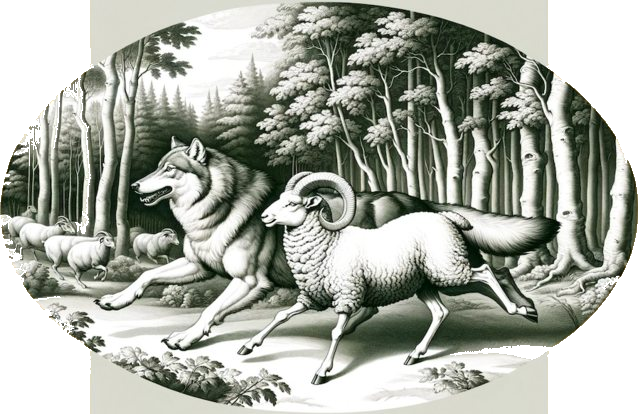
As a first concrete example, consider the following image that fable-dramatizes the name “Wolfram” (https://i.imgur.com/UIIKK9w.jpg):

RemoveBackground@Import[URL["https://i.imgur.com/UIIKK9wl.jpg"]]
1xg1w9gct6yca

Here is its narration:

LLMVisionSynthesize["Describe very concisely the image", "https://i.imgur.com/UIIKK9w.jpg", "MaxTokens" -> 600]

You are looking at a stylized black and white illustration of a wolf and a ram running side by side among a forest setting, with a group of sheep in the background. The image has an oval shape.

Remark: In this notebook Mathematica and Wolfram Language (WL) are used as synonyms.

Remark: This notebook is the WL version of the notebook “AI vision via Raku”, [AA3].

Ways to use with WL

There are five ways to utilize image interpretation (or vision) services in WL:

  • Dedicated Web API functions, [MT1, CWp1]
  • LLM synthesizing, [AAp1, WRIp1]
  • LLM functions, [AAp1, WRIp1]
  • Dedicated notebook cell type, [AAp2, AAv1]
  • Any combinations of the above

In this document are demonstrated the second, third, and fifth. The first one is demonstrated in the Wolfram Community post “Direct API access to new features of GPT-4 (including vision, DALL-E, and TTS)” by Marco Thiel, [MT1]. The fourth one is still “under design and consideration.”

Remark: The model “gpt-4-vision-preview” is given as a “chat completion model” , therefore, in this document we consider it to be a Large Language Model (LLM).

Packages and paclets

Here we load WL package used below, [AAp1, AAp2, AAp3]:

Import["https://raw.githubusercontent.com/antononcube/MathematicaForPrediction/master/Misc/LLMVision.m"]

Remark: The package LLMVision is “temporary” – It should be made into a Wolfram repository paclet, or (much better) its functionalities should be included in the “LLMFunctions” framework, [WRIp1].

Images

Here are the links to all images used in this document:

tblImgs = {{Row[{"Wolf and ram running together in forest"}], Row[{"https://i.imgur.com/UIIKK9w.jpg", ""}]}, {Row[{"LLM", " ", "functionalities", " ", "mind-map", ""}], Row[{"https://i.imgur.com/kcUcWnql.jpg", ""}]}, {Row[{"Single", " ", "sightseer", ""}], Row[{"https://i.imgur.com/LEGfCeql.jpg", ""}]}, {Row[{"Three", " ", "hunters", ""}], Row[{"https://raw.githubusercontent.com/antononcube/Raku-WWW-OpenAI/main/resources/ThreeHunters.jpg", ""}]}, {Row[{"Cyber", " ", "Week", " ", "Spending", " ", "Set", " ", "to", " ", "Hit", " ", "New", " ", "Highs", " ", "in", " ", "2023", ""}], Row[{"https://cdn.statcdn.com/Infographic/images/normal/7045.jpeg", ""}]}};
tblImgs = Map[Append[#[[1 ;; 1]], Hyperlink[#[[-1, 1, 1]]]] &, tblImgs];
TableForm[tblImgs, TableHeadings -> {None, {"Name", "Link"}}] /. {ButtonBox[n_, BaseStyle -> "Hyperlink", ButtonData -> { URL[u_], None}] :> Hyperlink[n, URL[u]]}
Name Link
Wolf and ram running together in forest Link
LLM functionalities mind-map Link
Single sightseer Link
Three hunters Link
Cyber Week Spending Set to Hit New Highs in 2023 Link

Document structure

Here is the structure of the rest of the document:

  • LLM synthesizing
    … using multiple image specs of different kind.
  • LLM functions
    … workflows over technical plots.
  • Dedicated notebook cells
    … just excuses why they are not programmed yet.
  • Combinations (fairytale generation)
    … Multi-modal applications for replacing creative types.
  • Conclusions and leftover comments
    … frustrations untold.

LLM synthesizing

The simplest way to use the OpenAI’s vision service is through the function LLMVisionSynthesize of the package “LLMVision”, [AAp1]. (Already demoed in the introduction.)

If the function LLMVisionSynthesize is given a list of images, a textual result corresponding to those images is returned. The argument “images” is a list of image URLs, image file names, or image Base64 representations. (Any combination of those element types can be specified.)

Before demonstrating the vision functionality below we first obtain and show a couple of images.

Images

Here is a URL of an image: (https://i.imgur.com/LEGfCeql.jpg). Here is the image itself:

Import[URL["https://i.imgur.com/LEGfCeql.jpg"]]
1u02ytqvf7xi9

OpenAI’s vision endpoint accepts POST specs that have image URLs or images converted into Base64 strings. When we use the LLMVisionSynthesize function and provide a file name under the “images” argument, the Base64 conversion is automatically applied to that file. Here is an example of how we apply Base64 conversion to the image  from a given file path:

img1 = Import[$HomeDirectory <> "/Downloads/ThreeHunters.jpg"];
ColumnForm[{
   img1, 
   Spacer[10], 
   ExportString[img1, {"Base64", "JPEG"}] // Short}]
0wmip47gloav0

Image narration

Here is an image narration example with the two images above, again, one specified with a URL, the other with a file path:

LLMVisionSynthesize["Give concise descriptions of the images.", {"https://i.imgur.com/LEGfCeql.jpg", $HomeDirectory <> "/Downloads/ThreeHunters.jpg"}, "MaxTokens" -> 600]

1. The first image depicts a single raccoon perched on a tree branch, surrounded by a plethora of vibrant, colorful butterflies in various shades of blue, orange, and other colors, set against a lush, multicolored foliage background.

2. The second image shows three raccoons sitting together on a tree branch in a forest setting, with a warm, glowing light illuminating the scene from behind. The forest is teeming with butterflies, matching the one in the first image, creating a sense of continuity and shared environment between the two scenes.

Description of a mind-map

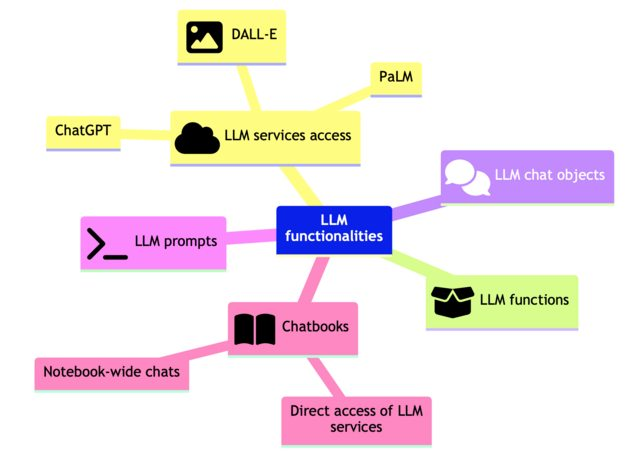
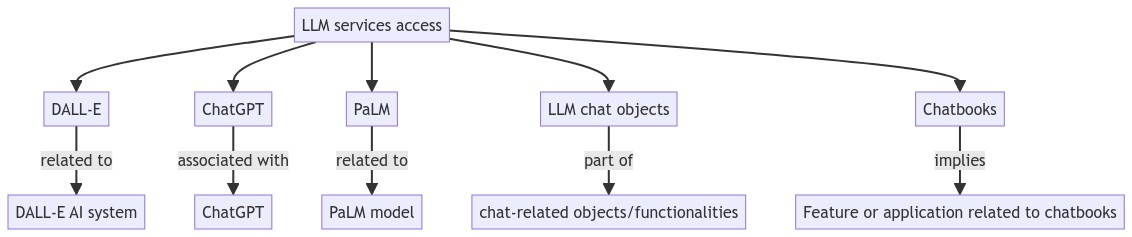
Here is an application that should be more appealing to WL-developers – getting a description of a technical diagram or flowchart. Well, in this case, it is a mind-map from [AA2]:

Import[URL["https://i.imgur.com/kcUcWnql.jpeg"]]
1ukmn97ui4o98

Here are get the vision model description of the mind-map above (and place the output in Markdown format):

mmDescr = LLMVisionSynthesize["How many branches this mind-map has? Describe each branch separately. Use relevant emoji prefixes.", "https://imgur.com/kcUcWnq.jpeg", "MaxTokens" -> 900]
This mind map has four primary branches, each diverging from a \
central node labeled "LLM functionalities." I will describe each one \
using relevant emoji prefixes:

1. 🖼️ **DALL-E** branch is in yellow and represents an access point to \
the DALL-E service, likely a reference to a Large Language Model \
(LLM) with image generation capabilities.

2. 🤖 **ChatGPT** branch in pink is associated with the ChatGPT \
service, suggesting it's a conversational LLM branch. There are two \
sub-branches:
   - **LLM prompts** indicates a focus on the prompts used to \
communicate with LLMs.
   - **Notebook-wide chats** suggests a feature or functionality for \
conducting chats across an entire notebook environment.

3. 💬 **LLM chat objects** branch in purple implies that there are \
objects specifically designed for chat interactions within LLM \
services.

4. ✍️ **LLM functions** branch in green seems to represent various \
functional aspects or capabilities of LLMs, with a sub-branch:
   - **Chatbooks** which may indicate a feature or tool related to \
managing or organizing chat conversations as books or records.

Converting descriptions to diagrams

Here from the obtained description we request a (new) Mermaid-JS diagram to be generated:

mmdChart = LLMSynthesize[{LLMPrompt["CodeWriter"], "Make the corresponding Mermaid-JS diagram code for the following description. Give the code only, without Markdown symbols.", mmDescr}]
graph TB
    center[LLM functionalities]
    center --> dalle[DALL-E]
    center --> chat[ChatGPT]
    center --> chatobj[LLM chat objects]
    center --> functions[LLM functions]
    chat --> prompts[LLM prompts]
    chat --> notebook[Notebook-wide chats]
    functions --> chatbooks[Chatbooks]

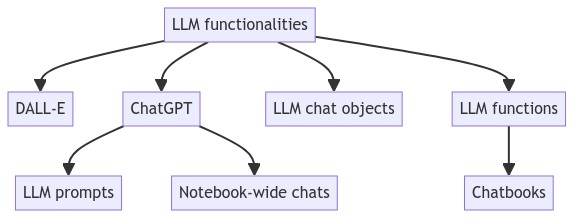
Here is a diagram made with the Mermaid-JS spec obtained above using the resource function of “MermaidInk”, [AAf1]:

ResourceFunction["MermaidInk"][mmdChart]
1qni2g4n8vywf

Below is given an instance of one of the better LLM results for making a Mermaid-JS diagram over the “vision-derived” mind-map description.

ResourceFunction["MermaidInk"]["
graph 
 TBA[LLM services access] --> B[DALL-E]
 A --> C[ChatGPT]
 A --> D[PaLM]
 A --> E[LLM chat objects]
 A --> F[Chatbooks]
 B -->|related to| G[DALL-E AI system]
 C -->|associated with| H[ChatGPT]
 D -->|related to| I[PaLM model]
 E -->|part of| J[chat-related objects/functionalities]
 F -->|implies| K[Feature or application related to chatbooks]
"]
0f0fuo9nexxl8

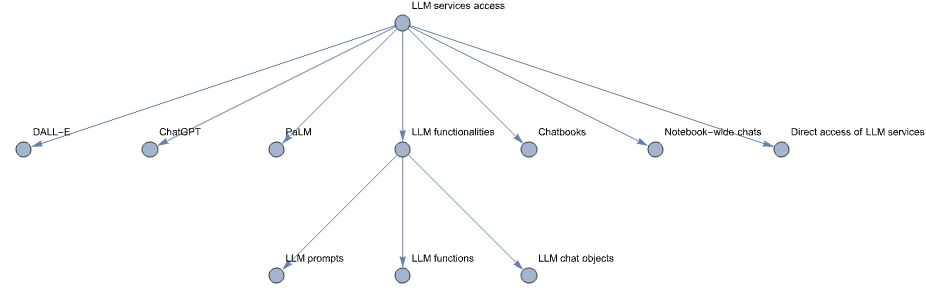
Code generation from image descriptions

Here is an example of code generation based on the “vision derived” mind-map description above:

LLMSynthesize[{LLMPrompt["CodeWriter"], "Generate the Mathematica code of a graph that corresponds to the description:\n", mmDescr}]
Graph[{"LLM services access" -> "DALL-E","LLM services access" -> "ChatGPT",
"LLM services access" -> "PaLM",
"LLM services access" -> "LLM functionalities",
"LLM services access" -> "Chatbooks","LLM services access" -> "Notebook-wide chats",
"LLM services access" -> "Direct access of LLM services","LLM functionalities" -> "LLM prompts",
"LLM functionalities" -> "LLM functions","LLM functionalities" -> "LLM chat objects"},
VertexLabels -> "Name"]
ToExpression[%]
0cmyq0lep1q7f

Analyzing graphical WL results

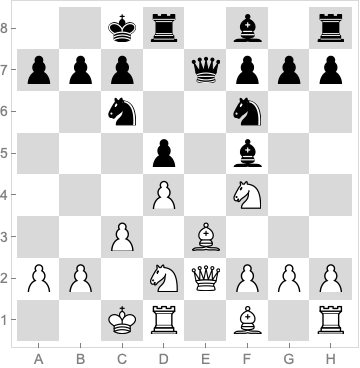
Consider another “serious” example – that of analyzing chess play positions. Here we get a chess position using the paclet “Chess”, [WRIp3]:

175o8ba3cxgoh
0scq7lbpp7xfs

Here we describe it with “AI vision”:

LLMVisionSynthesize["Describe the position.", Image[b2], "MaxTokens" -> 1000, "Temperature" -> 0.05]
This is a chess position from a game in progress. Here's the \
description of the position by algebraic notation for each piece:

White pieces:
- King (K) on c1
- Queen (Q) on e2
- Rooks (R) on h1 and a1
- Bishops (B) on e3 and f1
- Knights (N) on g4 and e2
- Pawns (P) on a2, b2, c4, d4, f2, g2, and h2

Black pieces:
- King (K) on e8
- Queen (Q) on e7
- Rooks (R) on h8 and a8
- Bishops (B) on f5 and g7
- Knights (N) on c6 and f6
- Pawns (P) on a7, b7, c7, d7, f7, g7, and h7

It's Black's turn to move. The position suggests an ongoing middle \
game with both sides having developed most of their pieces. White has \
castled queenside, while Black has not yet castled. The white knight \
on g4 is putting pressure on the black knight on f6 and the pawn on \
h7. The black bishop on f5 is active and could become a strong piece \
depending on the continuation of the game.

Remark: In our few experiments with these kind of image narrations, a fair amount of the individual pieces are described to be at wrong chessboard locations.

Remark: In order to make the AI vision more successful, we increased the size of the chessboard frame tick labels, and turned the “a÷h” ticks uppercase (into “A÷H” ticks.) It is interesting to compare the vision results over chess positions with and without that transformation.

LLM Functions

Let us show more programmatic utilization of the vision capabilities.

Here is the workflow we consider:

  1. Ingest an image file and encode it into a Base64 string
  2. Make an LLM configuration with that image string (and a suitable model)
  3. Synthesize a response to a basic request (like, image description)
    • Using LLMSynthesize
  4. Make an LLM function for asking different questions over image
    • Using LLMFunction
  5. Ask questions and verify results
    • ⚠️ Answers to “hard” numerical questions are often wrong.
    • It might be useful to get formatted outputs

Remark: The function LLMVisionSynthesize combines LLMSynthesize and step 2. The function LLMVisionFunction combines LLMFunction and step 2.

Image ingestion and encoding

Here we ingest an image and display it:

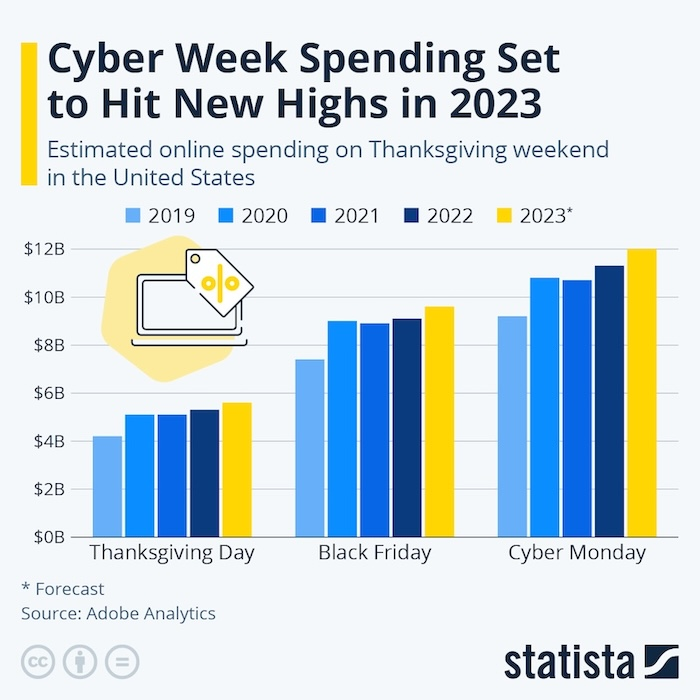
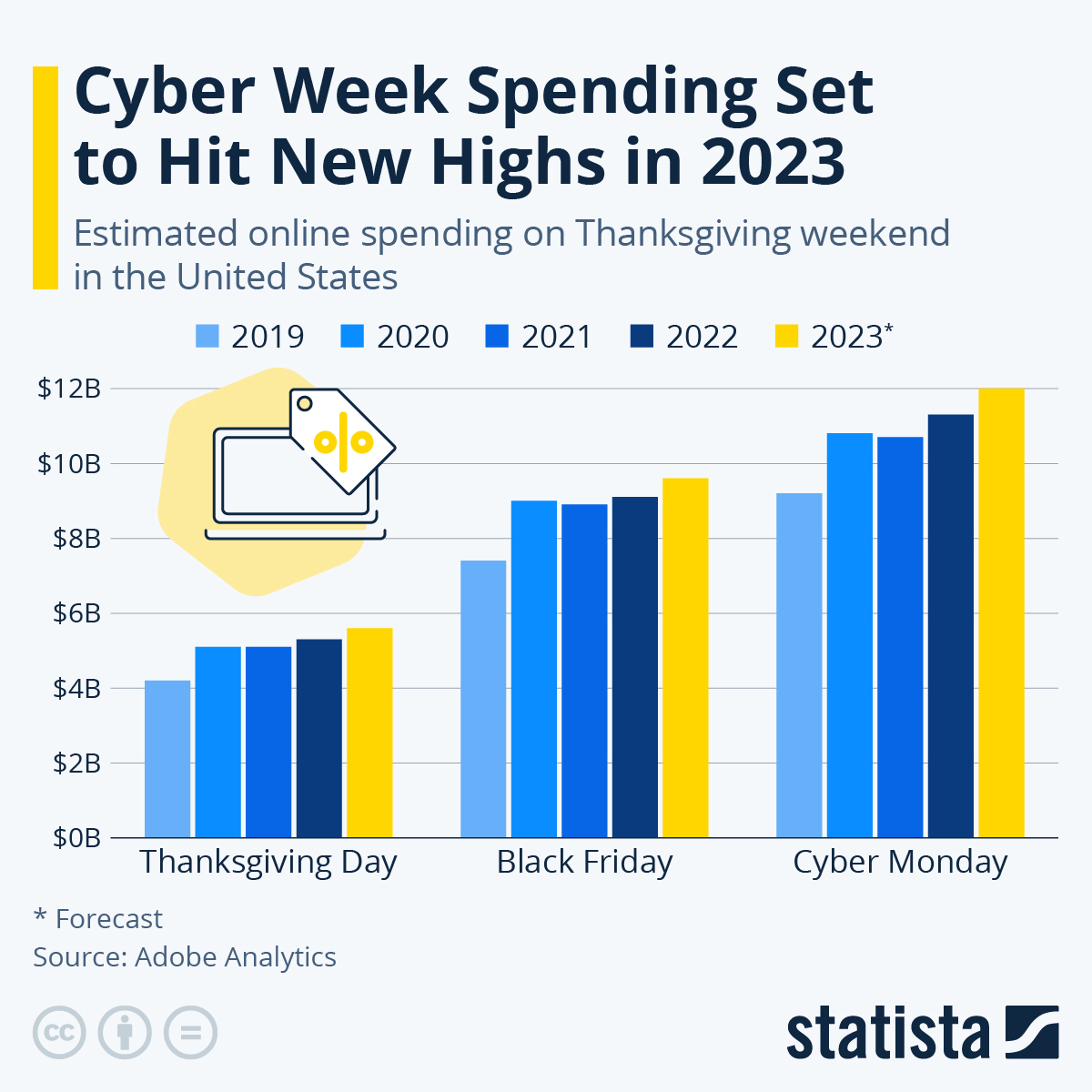
imgBarChart = Import[$HomeDirectory <> "/Downloads/Cyber-Week-Spending-Set-to-Hit-New-Highs-in-2023-small.jpeg"]
0iyello2xfyfo

Remark: The image was downloaded from the post “Cyber Week Spending Set to Hit New Highs in 2023” .

Configuration and synthesis

Here we synthesize a response of a image description request:

LLMVisionSynthesize["Describe the image.", imgBarChart, "MaxTokens" -> 600]
The image shows a bar chart infographic titled "Cyber Week Spending \
Set to Hit New Highs in 2023" with a subtitle "Estimated online \
spending on Thanksgiving weekend in the United States." There are \
bars for five years (2019, 2020, 2021, 2022, and 2023) across three \
significant shopping days: Thanksgiving Day, Black Friday, and Cyber \
Monday.

The bars represent the spending amounts, with different colors for \
each year. The spending for 2019 is shown in navy blue, 2020 in a \
lighter blue, 2021 in yellow, 2022 in darker yellow, and 2023 in dark \
yellow, with a pattern that clearly indicates the 2023 data is a \
forecast.

From the graph, one can observe an increasing trend in estimated \
online spending, with the forecast for 2023 being the highest across \
all three days. The graph also has an icon that represents online \
shopping, consisting of a computer monitor with a shopping tag.

At the bottom of the infographic, there is a note that says the \
data's source is Adobe Analytics. The image also contains the \
Statista logo, which indicates that this graphic might have been \
created or distributed by Statista, a company that specializes in \
market and consumer data. Additionally, there are Creative Commons \
(CC) icons, signifying the sharing and use permissions of the graphic.

It's important to note that without specific numbers, I cannot \
provide actual figures, but the visual trend is clear -- \
there is substantial year-over-year growth in online spending during \
these key shopping dates, culminating in a forecasted peak for 2023.

Repeated questioning

Here we define an LLM function that allows multiple question request invocations over the image:

fst = LLMVisionFunction["For the given image answer the question: ``. Be as concise as possible in your answers.", imgBarChart, "MaxTokens" -> 300]
0nmz56wwuboz3
fst["How many years are presented in that image?"]
"Five years are presented in the image."
fst["Which year has the highest value? What is that value?"]
"2023 has the highest value, which is approximately $11B on Cyber Monday."

Remark: Numerical value readings over technical plots or charts seem to be often wrong. Often enough, OpenAI’s vision model warns about this in the responses.

Formatted output

Here we make a function with a specially formatted output that can be more easily integrated in (larger) workflows:

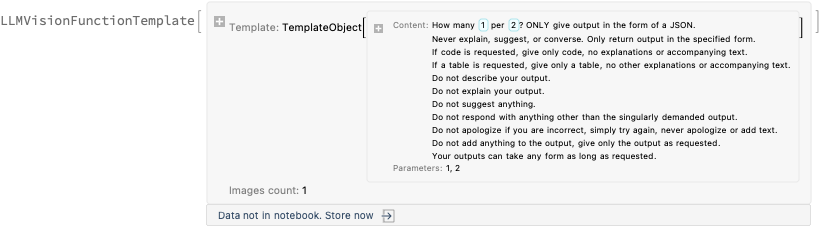
fjs = LLMVisionFunction["How many `1` per `2`? " <> LLMPrompt["NothingElse"]["JSON"], imgBarChart, "MaxTokens" -> 300, "Temperature" -> 0.1]
032vcq74auyv9

Here we invoke that function (in order to get the money per year “seen” by OpenAI’s vision):

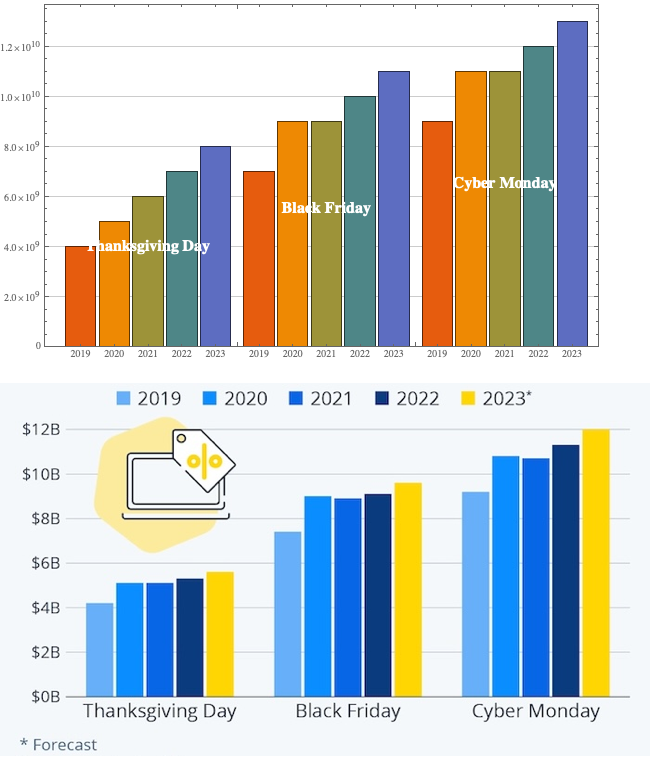
res = fjs["money", "shopping day"]
```json
{
  "Thanksgiving Day": {
    "2019": "$4B",
    "2020": "$5B",
    "2021": "$6B",
    "2022": "$7B",
    "2023": "$8B"
  },
  "Black Friday": {
    "2019": "$7B",
    "2020": "$9B",
    "2021": "$9B",
    "2022": "$10B",
    "2023": "$11B"
  },
  "Cyber Monday": {
    "2019": "$9B",
    "2020": "$11B",
    "2021": "$11B",
    "2022": "$12B",
    "2023": "$13B"
  }
}
```

Remark: The above result should be structured as shopping-day:year:value. But occasionally it might be structured as year::shopping-day::value. In the latter case just re-run LLM invocation.

Here we parse the obtained JSON into WL association structure:

aMoney = ImportString[StringReplace[res, {"```json" -> "", "```" -> ""}], "RawJSON"]
<|"Thanksgiving Day" -> <|"2019" -> "$4B", "2020" -> "$5B", 
   "2021" -> "$6B", "2022" -> "$7B", "2023" -> "$8B"|>, 
 "Black Friday" -> <|"2019" -> "$7B", "2020" -> "$9B", 
   "2021" -> "$9B", "2022" -> "$10B", "2023" -> "$11B"|>, 
 "Cyber Monday" -> <|"2019" -> "$9B", "2020" -> "$11B", 
   "2021" -> "$11B", "2022" -> "$12B", "2023" -> "$13B"|>|>

Remark: Currently LLMVisionFunction does not have an interpreter (or “form”) parameter as LLMFunction does. This can be seen as one of the reasons to include LLMVisionFunction in the “LLMFunctions” framework.

Here we convert the money strings into money quantities:

AbsoluteTiming[
  aMoney2 = Map[SemanticInterpretation, aMoney, {-1}] 
 ]
08ijuwuchj31q

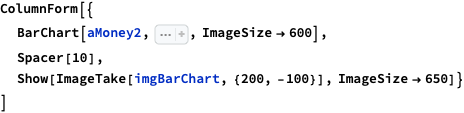
Here is the corresponding bar chart and the original bar chart (for
comparison):

0rt43fezbbp4b
1lpfhko7c2g6e

Remark: The comparison shows “pretty good vision” by OpenAI! But, again, small (or maybe significant) discrepancies are observed.

Dedicated notebook cells

In the context of the “well-established” notebook solutions OpenAIMode, [AAp2], or Chatbook,
[WRIp2], we can contemplate extensions to integrate OpenAI’s vision service.

The main challenges here include determining how users will specify images in the notebook, such as through URLs, file names, or Base64 strings, each with unique considerations. Additionally, we have to explore how best to enable users to input prompts or requests for image processing by the AI/LLM service.

This integration, while valuable, it is not my immediate focus as there are programmatic ways to access OpenAI’s vision service already. (See the previous sections.)

Combinations (fairy tale generation)

Consider the following computational workflow for making fairy tales:

  1. Draw or LLM-generate a few images that characterize parts of a story.
  2. Narrate the images using the LLM “vision” functionality.
  3. Use an LLM to generate a story over the narrations.

Remark: Multi-modal LLM / AI systems already combine steps 2 and 3.

Remark: The workflow above (after it is programmed) can be executed multiple times until satisfactory results are obtained.

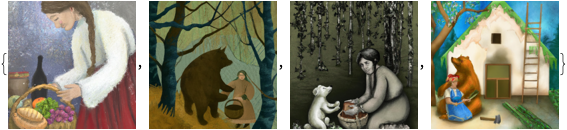
Here are image generations using DALL-E for four different requests with the same illustrator name in them:

storyImages = 
   Map[
    ImageSynthesize["Painting in the style of John Bauer of " <> #] &,
    {"a girl gets a basket with wine and food for her grandma.", 
     "a big bear meets a girl carrying a basket in the forest.", 
     "a girl that gives food from a basket to a big bear.", 
     "a big bear builds a new house for girl's grandma."} 
   ];
storyImages // Length

(*4*)

Here we display the images:

storyImages
13qqfe3pzqfn9

Here we get the image narrations (via the OpenAI’s “vision service”):

storyImagesDescriptions = LLMVisionSynthesize["Concisely describe the images.", storyImages, "MaxTokens" -> 600]
1. A painting of a woman in a traditional outfit reaching into a
    basket filled with vegetables and bread beside a bottle.
2. An illustration of a person in a cloak holding a bucket and
    standing next to a large bear in a forest.
3. An artwork depicting a person sitting naked by a birch tree,
    sharing a cake with a small bear.
4. A picture of a person in a folk costume sitting next to a bear
    with a ladder leaning against a house.

Here we extract the descriptions into a list:

descr = StringSplit[storyImagesDescriptions, "\n"];

Here we generate the story from the descriptions above (using OpenAI’s ChatGPT):

 LLMSynthesize[{"Write a story that fits the following four descriptions:", Sequence @@ descr}, LLMEvaluator -> LLMConfiguration["MaxTokens" -> 1200]]
In a small village nestled deep within a lush forest, lived a woman \
named Anya. She was gentle and kind-hearted, known for her artistic \
talent and love for nature. Anya had a keen eye for capturing the \
beauty of the world around her through her paintings. Each stroke of \
her brush seemed to hold a piece of her soul, and her art touched the \
hearts of all who laid their eyes upon it.

One sunny day, on the outskirts of the village, Anya set up her easel \
amidst a lively farmers' market. In front of her, she placed a large \
canvas, ready to bring her latest vision to life. With her palette \
filled with vibrant colors, she began painting a woman dressed in a \
traditional outfit, delicately reaching into a woven basket filled to \
the brim with fresh vegetables and warm bread. Beside the basket lay \
an empty bottle, hinting at a joyous feast anticipated for the day.

As Anya skillfully brought her painting to life, a cloak-wrapped \
figure caught her attention. Intrigued, she turned her easel slightly \
to capture the essence of this mysterious wanderer standing beside a \
mighty bear deep within the heart of the forest. In her illustration, \
she depicted the cloaked person, holding a bucket, their gaze met by \
the curious eyes of the regal woodland creature. The bond between \
them was palpable, a silent understanding as they stood together, \
guardians of the ancient woods.

Meanwhile, in a clearing not too far away, Anya discovered a scene \
that touched her deeply. She stumbled upon a person sitting naked \
beneath the shade of a majestic birch tree, a cake placed lovingly \
between them and a small bear. The artwork she created was a tender \
portrayal of the intimate connection shared by the two, a testament \
to the innate kindness that existed between species. Together, they \
enjoyed the sweet treat, their hearts entwined in empathy, neither \
fearing the vulnerability of their exposed selves.

Driven by her artistry, Anya's imagination continued to explore the \
fascinating relationship between humans and bears in her village. In \
her final artwork, she turned her focus to a person in a folk \
costume, sitting comfortably beside a towering bear. A ladder leaned \
against a charming wooden house in the background, illustrating the \
close bond shared between the village folks and their wild \
companions. Together, they stood tall, their spirits entwined in a \
balance of mutual respect and harmony.

As Anya showcased her artwork to the villagers, they were captivated \
by the depth of emotion expressed through her brushstrokes. Her \
paintings served as a reminder that love and understanding knew no \
boundaries, whether lived within the confines of villages or amidst \
the enchanting wilderness.

Anya became a celebrated artist, known far and wide for her ability \
to weave tales of compassion and unity through her exquisite \
paintings. Her work inspired generations to see the world through the \
lens of empathy, teaching them that even in unconventional \
connections between humans and animals, beauty could be found.

And so, her legacy lived on, her art continuing to touch the hearts \
of those who recognized the profound messages hidden within her \
strokes of color. For in every stroke, Anya immortalized the timeless \
bond between humanity and the natural world, forever reminding us of \
the kinship we share with the creatures that roam our earth.

Conclusions and leftover comments

  • The new OpenAI vision model, “gpt-4-vision-preview”, as all LLMs produces too much words, and it has to be reined in and restricted.
  • The functions LLMVisionSynthesize and LLMVisionFunction have to be part of the “LLMFunctions” framework.
    • For example, “LLMVision*” functions do not have an interpreter (or “form”) argument.
  • The package “LLMVision” is meant to be simple and direct, not covering all angles.
  • It would be nice a dedicated notebook cell interface and workflow(s) for interacting with “AI vision” services to be designed and implemented.
    • The main challenge is the input of images.
  • Generating code from hand-written diagrams might be really effective demo using WL.
  • It would be interesting to apply the “AI vision” functionalities over displays from, say, chess or play-cards paclets.

References

Articles

[AA1] Anton Antonov, “Workflows with LLM functions (in WL)”,​ August 4, (2023), Wolfram Community, STAFF PICKS.

[AA2] Anton Antonov, “Raku, Python, and Wolfram Language over LLM functionalities”, (2023), Wolfram Community.

[AA3] Anton Antonov, “AI vision via Raku”, (2023), Wolfram Community.

[MT1] Marco Thiel, “Direct API access to new features of GPT-4 (including vision, DALL-E, and TTS)​​”, November 8, (2023), Wolfram Community, STAFF PICKS.

[OAIb1] OpenAI team, “New models and developer products announced at DevDay” , (2023), OpenAI/blog .

Functions, packages, and paclets

[AAf1] Anton Antonov, MermaidInk, WL function, (2023), Wolfram Function Repository.

[AAp1] Anton Antonov, LLMVision.m, Mathematica package, (2023), GitHub/antononcube .

[AAp2] Anton Antonov, OpenAIMode, WL paclet, (2023), Wolfram Language Paclet Repository.

[AAp3] Anton Antonov, OpenAIRequest.m, Mathematica package, (2023), GitHub/antononcube .

[CWp1] Christopher Wolfram, OpenAILink, WL paclet, (2023), Wolfram Language Paclet Repository.

[WRIp1] Wolfram Research, Inc., LLMFunctions, WL paclet, (2023), Wolfram Language Paclet Repository.

[WRIp2] Wolfram Research, Inc., Chatbook, WL paclet, (2023), Wolfram Language Paclet Repository.

[WRIp3] Wolfram Research, Inc., Chess, WL paclet, (2023), Wolfram Language Paclet Repository.

Videos

[AAv1] Anton Antonov, “OpenAIMode demo (Mathematica)”, (2023), YouTube/@AAA4Prediction.

Nightcore restyling of Dolphin’s “Spring”

Introduction

This post shows how to make Nightcore modifications to a song video. We use Dolphin ‘s song “Spring” (“Весна”).

Remark: We use “Spring” since its licencing allows copies of it to be (publicly) played via YouTube .

Remark: The post follows closely a previous post of mine about making Nightcore version of the song “Schweine”.

The Nightcore transformation of the song was fairly straightforward with Mathematica / WL. The video transformation and combination are also fairly straightforward or easy.

Remark: Here is the final result uploaded to YouTube:

NightcoreSpring-YouTube

Get movies

Here is a link to the official video: https://www.youtube.com/watch?v=P47V4SASwGc .

I downloaded the videos from after searching yandex.ru (dzen.ru). Alternatively, one can find and download videos in Firefox or Google Chrome via relevant plugins. (Or use VLC ; or utilize the paclet described in the post “Playing with YouTube from Mathematica” , [BMI1].)

At this point I have a small official video and larger one. This gives the opportunity to demonstrate transferring of the “Dolphin” signature from the “official” video to the larger one. (See the frame manipulation below.)

Here we import the downloaded small “official” video:


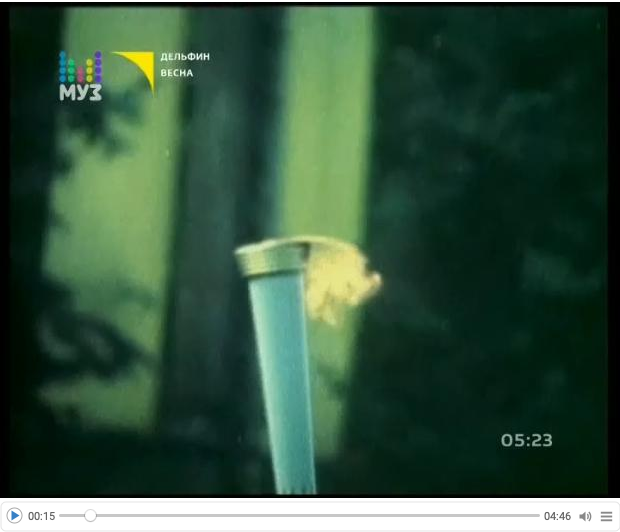
vdSpring0 = Import["~/Downloads/Dolphin-Spring-videoclip.mp4"]

0up57w194t7mb

Here we import the larger downloaded video:


vdSpring = Import["~/Downloads/Дельфин \[LongDash] Весна.mp4"]

1bd1zbdxppned

Getting Dolphin’s “signature”

Here we is the first frame from the “official” video:


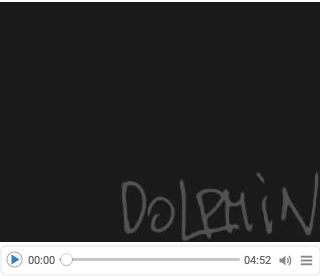
frameSign = VideoExtractFrames[vdSpring0, 0]

0u3peo5aimdel

Here we binarize the image:


frameSignBW = Binarize[frameSign]

14sznwdgmt6t7

Before adding that image to video frames it is resized, darkened, and “smoothed.” Something like this:


ImageEffect[#, "OilPainting"] &@Darker[ImageResize[frameSignBW, 2*ImageDimensions[frameSignBW]], 0.7]

05dqdfit561tp

Make Nightcore audio

The process for making a song Nightcore is described in Wikipedia, [Wk1]. Basically, we just make the tempo 20-30% faster and raise the pitch with, \approx 5.5 semitones.

Remark: An alternative of the process shown in this section is to use audio transformation programs like Audacity and AmadeusPro .

Here we get the audio from the video:


auSpring = Audio[vdSpring]

0vxw2kdih3hmg

Here we change the tempo to be 20% faster:


AbsoluteTiming[
  auSpringFaster = AudioTimeStretch[auSpring, 1/1.2] 
 ]

0cztw139kthxy

Here we raise the pitch with 5.5 semitones:


AbsoluteTiming[
  auSpringNightcore = AudioPitchShift[auSpringFaster, Quantity[5.5, "Semitones"]] 
 ]

0rs8kv89xo3y9

Get lyrics

Although, we have a video with English subtitles, it would be interesting to experiment with adding subtitles to the video or “discovering” the subtitles in the video frames.

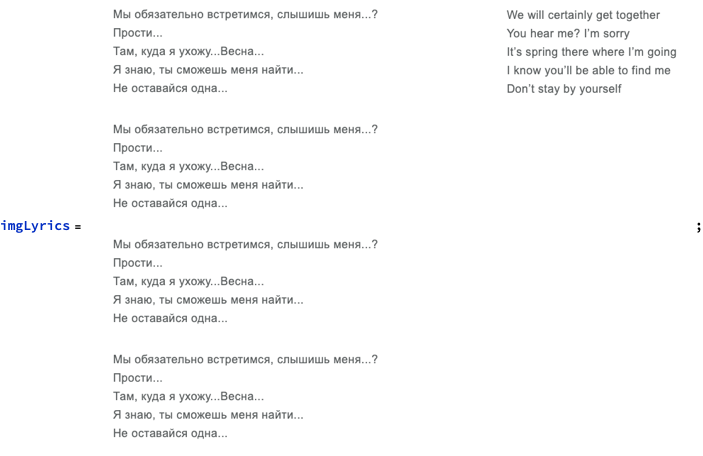
Instead of just copy-&-pasting the text I took screenshot of lyrics here: https://lyrics-on.net/en/1096839-vesna-vesna-lyrics.html

0cg71l6powom8

Here the image above is split into two halves and they displayed in a grid:


imgLyrics1 = ImageTake[imgLyrics, All, {1, ImageDimensions[imgLyrics][[2]]/1.3}];
imgLyrics2 = ImageTake[imgLyrics, All, {ImageDimensions[imgLyrics][[2]]/1.3, -1}];
GraphicsGrid[{{imgLyrics1, imgLyrics2}}, Dividers -> All, ImageSize -> 700]

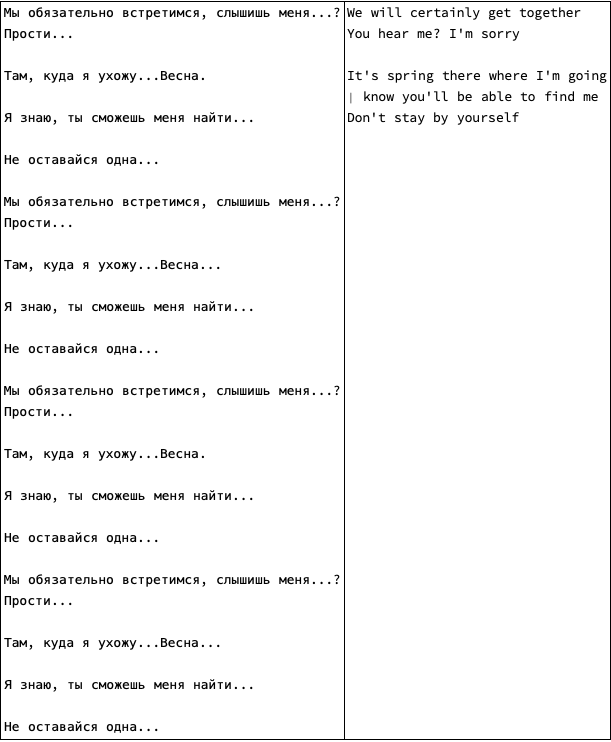
Here we recognize the lyrics within each half:


Grid[{{TextRecognize[imgLyrics1, Language -> "Russian"], TextRecognize[imgLyrics2, Language -> "English"]}}, Dividers -> All]

11pimedkmg0cz

Remark: Because we found a video with subtitles, we do not use further the extracted lyrics in this notebook.

Direct video styling

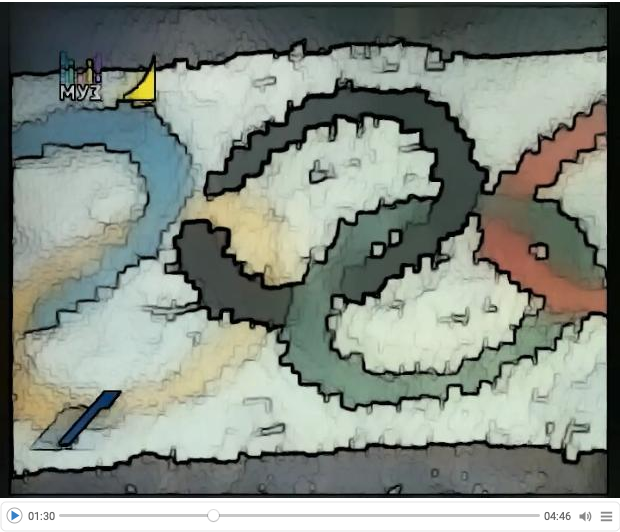
If we only wanted to change how the video looks we can directly manipulate the video frames with VideoFrameMap, [WRI6] :


AbsoluteTiming[
  k = 0; 
  vdSpring4 = VideoFrameMap[Switch[Mod[k++, 500] < 250, True, EdgeDetect[#], False, ImageEffect[#, "EdgeStylization"]] &, vdSpring]; 
 ]

(*{1221.98, Null}*)

vdSpring4

16vqoanffmhne

Remark: Since we want to make both the audio and video shorter we have to use video frames.

Make Nightcore video

Get the frames of the video:


AbsoluteTiming[
  lsFrames = VideoExtractFrames[vdSpring, All]; 
 ]

(*{8.04196, Null}*)

Show the number of frames:


Length[lsFrames]

(*7156*)

Change all the frames to have the “ColorBoosting” image effect:


AbsoluteTiming[
  lsFramesBoost = ParallelMap[ImageEffect[#, "ColorBoosting"] &, lsFrames]; 
 ]

(*{239.268, Null}*)

Here we resize the “signature” image, “smooth” it, and then add it to all of the “boosted” frames:


AbsoluteTiming[
  lsFramesBoostSigned = 
    Block[{frameSignBW = ImageEffect[#, "OilPainting"] &@Darker[ImageResize[frameSignBW, ImageDimensions[lsFramesBoost[[1]]]], 0.85]}, 
     Map[ImageAdd[#, frameSignBW] &, lsFramesBoost] 
    ]; 
 ]

(*{8.61014, Null}*)

Here is how the 10-th frame looks like:


lsFramesBoostSigned[[10]]

0r7uiekngv7f3

Generate (audio-less) video from the list of frames that have the same length as the generated audio:


AbsoluteTiming[
  vdSpringNew = VideoGenerator[lsFramesBoostSigned, Duration[auSpringNightcore]]; 
 ]

(*{95.209, Null}*)

Combine the video and audio (into a new video):


AbsoluteTiming[
  vdSpringNightcore = VideoCombine[{vdSpringNew, auSpringNightcore}]; 
 ]

(*{0.07271, Null}*)

vdSpringNightcore

0dvupxody23tu

Remark: Here we do not export the video, since Mathematica saves it in a “standard” location of the host operating system.

References

[BMA1] b3m2ma1, “Playing with YouTube from Mathematica” , (2018), Wolfram Community. ([GitHub link](https://b3m2a1.github.io/playing-with-youtube-from-mathematica.html).)

[DM1] Dolphin, https://dolphinmusic.ru .

[Wk1] Wikipedia entry, “Nightcore” .

[WRI1] Wolfram Research (2010), TextRecognize, Wolfram Language function, https://reference.wolfram.com/language/ref/TextRecognize.html (updated 2020).

[WRI2] Wolfram Research (2016), Audio, Wolfram Language function, https://reference.wolfram.com/language/ref/Audio.html (updated 2020).

[WRI3] Wolfram Research (2016), AudioTimeStretch, Wolfram Language function, https://reference.wolfram.com/language/ref/AudioTimeStretch.html (updated 2020).

[WRI4] Wolfram Research (2016), AudioPitchShift, Wolfram Language function, https://reference.wolfram.com/language/ref/AudioPitchShift.html (updated 2020).

[WRI5] Wolfram Research (2020), VideoExtractFrames, Wolfram Language function, https://reference.wolfram.com/language/ref/VideoExtractFrames.html.

[WRI6] Wolfram Research (2020), VideoFrameMap, Wolfram Language function, https://reference.wolfram.com/language/ref/VideoFrameMap.html (updated 2021).

[WRI7] Wolfram Research (2008), ImageEffect, Wolfram Language function, https://reference.wolfram.com/language/ref/ImageEffect.html (updated 13).

[WRI8] Wolfram Research (2020), VideoGenerator, Wolfram Language function, https://reference.wolfram.com/language/ref/VideoGenerator.html (updated 2021).

[WRI9] Wolfram Research (2020), VideoCombine, Wolfram Language function, https://reference.wolfram.com/language/ref/VideoCombine.html.

Halloween Rorschach animations

Last weekend I made and uploaded to YouTube a presentation discussing the making of Rorschach mask animations in both 2D and 3D:

Here are Mathematica notebooks discussing the process in detail:

Here is the link to the Imgur gallery of animations: “Attempts to recreate Rorschach’s mask”.

Here is the Halloween animation I made today:

Here is the black-&-white version:

Here is a collage of the “guiding images” for the animations above:

Nightcore “Schweine” video making

Introduction

This notebook/document shows how to make Nightcore modifications to a song video. We use Glukoza’s song “Schweine”. The song “Schweine” became popular via the radio station Vladivostok FM of the game “Grand Theft Auto IV”.

Remark: We use Schweine since its licencing allows copies of it to be (publicly) played via YouTube.

The Nightcore transformation of the song was fairly straightforward with Mathematica / WL. The video transformation and combination are also fairly straightforward or easy.

Remark: Here is the final result uploaded to YouTube (https://www.youtube.com/watch?v=8UsR9L3KPIU):

Get movies

Here is a link to the official video: https://www.youtube.com/watch?v=Ue5ZBe-GzSM .

Here is a link to a version with English subtitles: https://www.youtube.com/watch?v=9Es1nPWzJ-0 .

Download at least one of the videos. (Use a Firefox or Google Chrome plugin; use VLC; or utilize the paclet described in the post “Playing with YouTube from Mathematica”, [BMI1].)

Here we import the downloaded video:

vdSubSchweine = Import["~/Downloads/Glukoza Nostra - Schweine -subtitled-.mp4"]
1ow21rc06glgb

Make Nightcore audio

The process for making a song Nightcore is described in Wikipedia, [Wk1]. Basically, we just make the tempo 20-30% faster and raise the pitch with, ≈5.5 semitones.

Remark: An alternative of the process shown in this section is to use audio transformation programs like Audacity and AmadeusPro.

Here we get the audio from the video:

auSchweine = Audio[vdSubSchweine]
1uuz3gsogs93f

Here we change the tempo to be 20% faster:

AbsoluteTiming[
  auSchweineFaster = AudioTimeStretch[auSchweine, 1/1.2] 
 ]
1n7u00nxdhs7q

Here we raise the pitch with 5.5 semitones:

AbsoluteTiming[
  auSchweineNightcore = AudioPitchShift[auSchweineFaster, Quantity[5.5, "Semitones"]] 
 ]
005j44hxpz7h0

Get lyrics

Although, we have a video with English subtitles, it would be interesting to experiment with adding subtitles to the video or “discovering” the subtitles in the video frames.

Instead of just copy-&-pasting the text I took screenshot of lyrics here:
https://lyrics-on.net/en/1023698-schweine-shvajjne-lyrics.html .

0jnweyevtrddx

Here the image above is split into two halves and they displayed in a grid:

imgLyrics1 = ImageTake[imgLyrics, All, {1, ImageDimensions[imgLyrics][[2]]/2}];
imgLyrics2 = ImageTake[imgLyrics, All, {ImageDimensions[imgLyrics][[2]]/2, -1}];
GraphicsGrid[{{imgLyrics1, imgLyrics2}}, Dividers -> All, ImageSize -> 700]
0nok801otpf32

Here we recognize the lyrics within each half:

Grid[{{TextRecognize[imgLyrics1, Language -> "Russian"], TextRecognize[imgLyrics2, Language -> "English"]}}, Dividers -> All]
07s8wyhharkul

Remark: Because we found a video with subtitles, we do not use further the extracted lyrics in this notebook.

Direct video styling

If we only wanted to change how the video looks we can directly manipulate the video frames with VideoFrameMap, [WRI6] :

AbsoluteTiming[
  k = 0; 
  vdSchweine4 = VideoFrameMap[Switch[Mod[k++, 500] < 250, True, EdgeDetect[#], False, ImageEffect[#, "EdgeStylization"]] &, vdSubSchweine]; 
 ]
vdSchweine4
1x9obucooutc8

Remark: Since we want to make both the audio and video shorter we have to use video frames.

Make Nightcore video

Get the frames of the video:

AbsoluteTiming[
  lsFrames = VideoExtractFrames[vdSubSchweine, All]; 
 ]

(*{11.5501, Null}*)

Show the number of frames:

Length[lsFrames]

(*9041*)

Change all the frames to have the “Sepia” image effect:

AbsoluteTiming[
  lsFramesSepia = ParallelMap[ImageEffect[#, "Sepia"] &, lsFrames]; 
 ]

(*{124.898, Null}*)

Generate (audio-less) video from the list of frames that have the same length as the generated audio:

AbsoluteTiming[
  vdSubSchweineNew = VideoGenerator[lsFramesSepia, Duration[auSchweineNightcore]]; 
 ]

(*{115.34, Null}*)

Combine the video and audio (into a new video):

AbsoluteTiming[
  vdSubSchweineNightcore = VideoCombine[{vdSubSchweineNew, auSchweineNightcore}]; 
 ]

(*{0.576532, Null}*)
vdSubSchweineNightcore
0ffx6fronoawk

Remark: Here we do not export the video, since Mathematica saves it in a “standard” location of the host operating system.

References

[BMA1] b3m2ma1, “Playing with
YouTube from Mathematica”
, (2018), Wolfram Community. (GitHub
link
.)

[Wk1] Wikipedia entry, “Nightcore”.

[WRI1] Wolfram Research (2010), TextRecognize, Wolfram Language
function, https://reference.wolfram.com/language/ref/TextRecognize.html
(updated 2020).

[WRI2] Wolfram Research (2016), Audio, Wolfram Language function,
https://reference.wolfram.com/language/ref/Audio.html (updated
2020).

[WRI3] Wolfram Research (2016), AudioTimeStretch, Wolfram Language
function,
https://reference.wolfram.com/language/ref/AudioTimeStretch.html
(updated 2020).

[WRI4] Wolfram Research (2016), AudioPitchShift, Wolfram Language
function,
https://reference.wolfram.com/language/ref/AudioPitchShift.html (updated
2020).

[WRI5] Wolfram Research (2020), VideoExtractFrames, Wolfram Language
function,
https://reference.wolfram.com/language/ref/VideoExtractFrames.html.

[WRI6] Wolfram Research (2020), VideoFrameMap, Wolfram Language
function, https://reference.wolfram.com/language/ref/VideoFrameMap.html
(updated 2021).

[WRI7] Wolfram Research (2008), ImageEffect, Wolfram Language
function, https://reference.wolfram.com/language/ref/ImageEffect.html
(updated 13).

[WRI8] Wolfram Research (2020), VideoGenerator, Wolfram Language
function, https://reference.wolfram.com/language/ref/VideoGenerator.html
(updated 2021).

[WRI9] Wolfram Research (2020), VideoCombine, Wolfram Language
function,
https://reference.wolfram.com/language/ref/VideoCombine.html.